How to install Filezilla in Raspberry pi 4?
You Install Filezilla in raspberry pi 4 with a single command.
Filezilla is free and open-source FTP cross-platform. You install Filezilla on every operating system on earth with an open click and a command.
Install Filezilla in Raspberry pi 4?
You install Filezilla with a command in Raspberry pi 4. Firstly, you update your system.
sudo apt-get updateNow run the upgrade command in raspberry pi 4.
sudo apt-get upgradeWhen your system upgrades successfully, now you install Filezilla in your raspberry pi 4 system.
sudo apt-get install -y filezillaAfter This, run successfully in the system. which means Filezilla successfully install success in your raspberry pi 4.
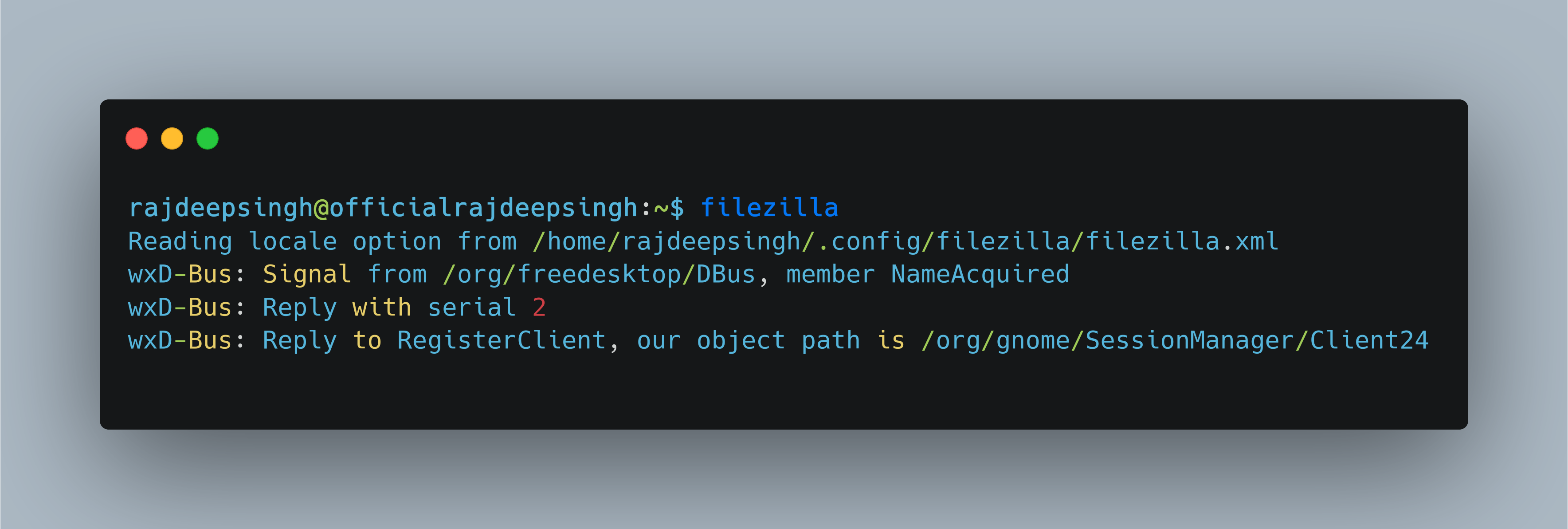
Check Filezilla install in your raspberry. Run the Filezilla command in your raspberry pi 4 terminal.
filezillaAfter running this command successfully in the terminal, in second Filezilla UI interface opens in raspberry pi 4.
Check filezilla version
filezilla -v
Filezilla help command
filezilla --help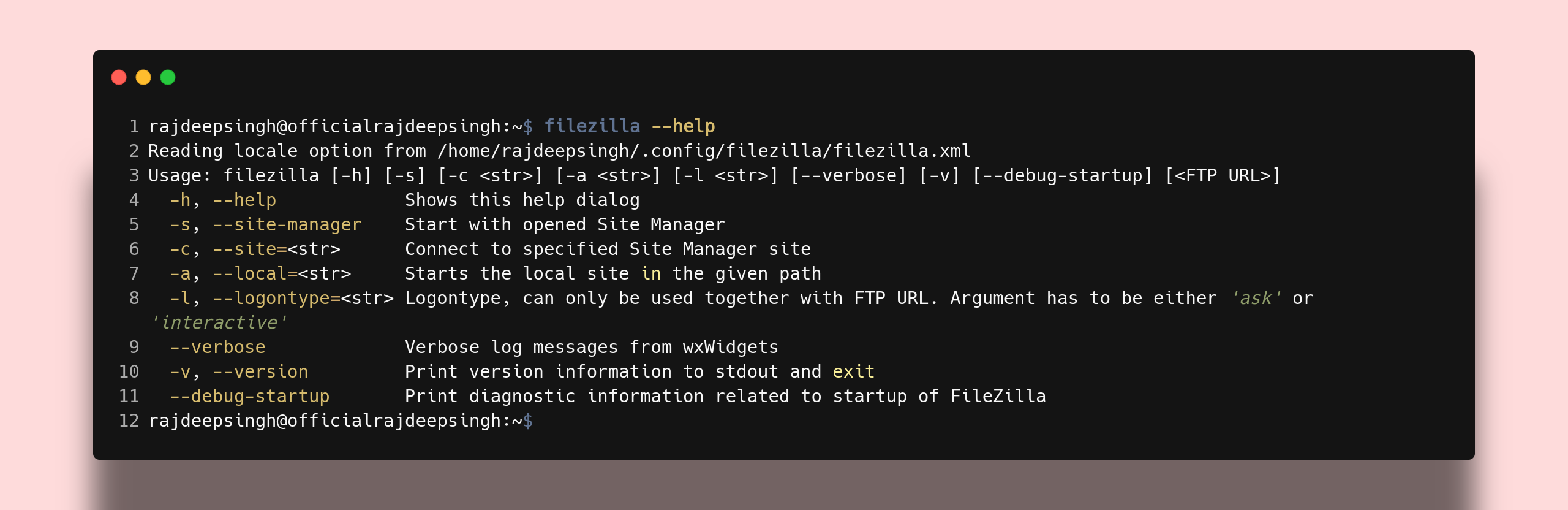
Related Articles
Recommended based on topic, title, and author
Have a project or question?
Feel free to reach out for business inquiries, questions, or collaboration.