How to install Node js and Npm latest Version on Raspberry Pi 4?
In this my article, you install node js and npm latest version in your raspberry pi 4.
Hey Everyone, my name is Rajdeep Singh. I'm a Front-end developer in India. you are interested to install npm and node.js latest version in your raspberry pi 4. then you are right place.
Now follow these steps.
Steps
- Update & Upgrade your pi
- ARM Version
- Go to Official Nodejs
- Copy Link
- Extract The File
- Copy The Files Into The Directory
- Check Installation
Update & Upgrade your Pi
Fastly update your raspberry pi 4 using update commands
sudo apt-get updateAfter the update command, you run the upgrade command to upgrade your raspberry pi package.
sudo apt-get upgradeARM Version
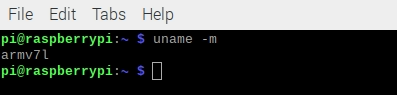
Now you check your raspberry pi 4 arm architecture. so that we install node js and npm according to your arm architecture.
Check ARM architecture use the following command.
uname -mCurrently in my Raspberry armv7l Architecture in your case may be different.
Go to Official NodeJS
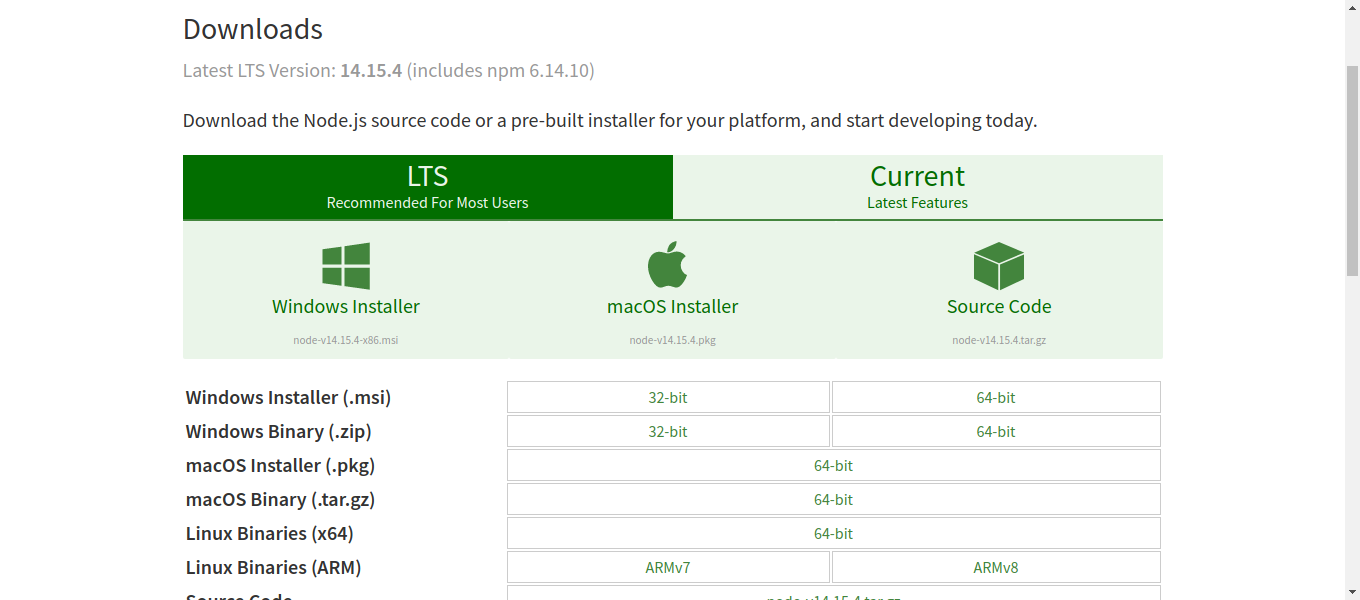
Firstly goto node js official download page.
Copy Link
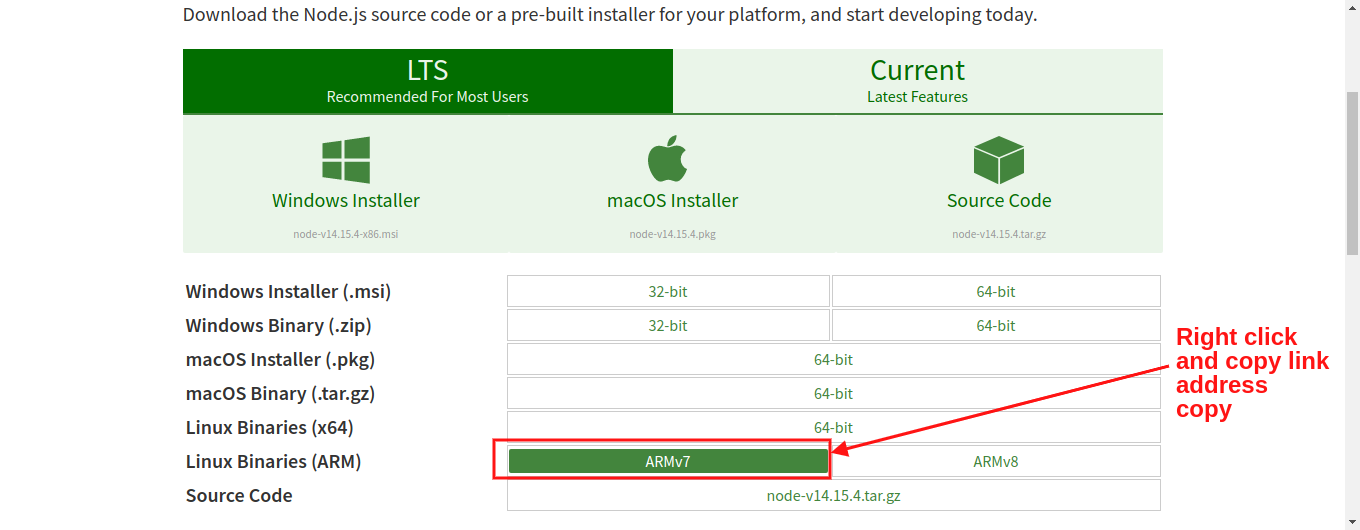
Once open node js download page. then Right-click on Linux Binaries (ARM) version and copy the link address.
- Without command:
Goto node js download page and click to ARMV7 button. after a few seconds you download start it.
- With Command ( Recommended ):
My arm Architecture is armv7l. so that, I copy ARMV7 Link Address. In Your case, your ARM Architecture armv81. so that you copy ARMV8 Link Address
wget paste-your-linkMy example
wget https://nodejs.org/dist/v14.15.4/node-v14.15.4-linux-armv7l.tar.xzExtract The File
Once downloaded Completed now Extract your file. you are extracting files by Raspbian File manager and secondly, use the tar command according to your mind.
Your file looks like this:
tar -xzf node-vXX.XX.X-linux-armvXl.tar.gzIn my example my file name:
tar -xzf node-v14.15.4-linux-armv7lIf you face any error use the Raspbian File manager to extract the File.
Copy The Files Into The Directory:
run node js with any directory we need to copy all extracted files into the "/usr/local" folder.
Your file looks like this:
tar -xzf node-vXX.XX.X-linux-armvXl.tar.gzGo to your extracted folder:
cd node-v14.15.4-linux-armv7lAfter entering your folder then copy all files, we use the cp command. The
"-R" flag is to signify to the program to copy all the files recursively, i.e
include all files within folders. "*" just means to copy everything in the
folder.
sudo cp -R * /usr/local/Check Installation:
Now your Node js and npm are successfully Installed. now you verify your node and npm version. the simply run the following commands
node -v
npm -v
All work fine, you see node and npm versions.
If you run into any issues, just leave us a comment down below and we will try to help you guys!
Reference
https://www.makersupplies.sg/blogs/tutorials/how-to-install-node-js-and-npm-on-the-raspberry-pi
https://nodejs.org/en/download/
Related Articles
Recommended based on topic, title, and author
Have a project or question?
Feel free to reach out for business inquiries, questions, or collaboration.